How to: Add Handwriting in Notion on iPad (No Copy/Paste Mess)
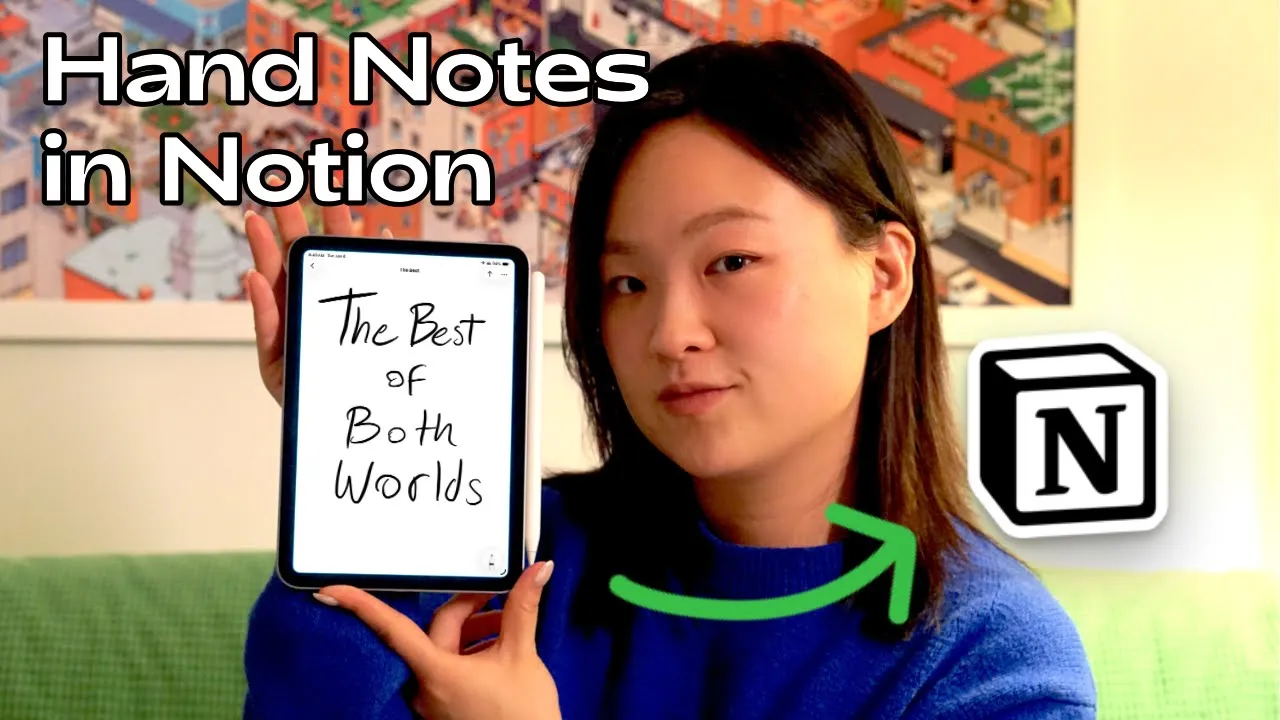
If you use Notion on iPad, you’ve probably run into one big limitation: Notion doesn’t let you create handwritten notes directly with Apple Pencil.
There are workarounds. You can write in a handwriting app like GoodNotes, export, then import into Notion. Or you can copy/paste drawings from Apple Notes into a Notion page.
But both options are slow. They’re also the kind of thing you’ll stop doing after a few days because it takes too much manual effort.
So here’s a faster approach: automate the whole flow so you can write by hand on iPad and have your notes show up in Notion automatically, complete with searchable text.
The quick solution: ShortHand + Notion
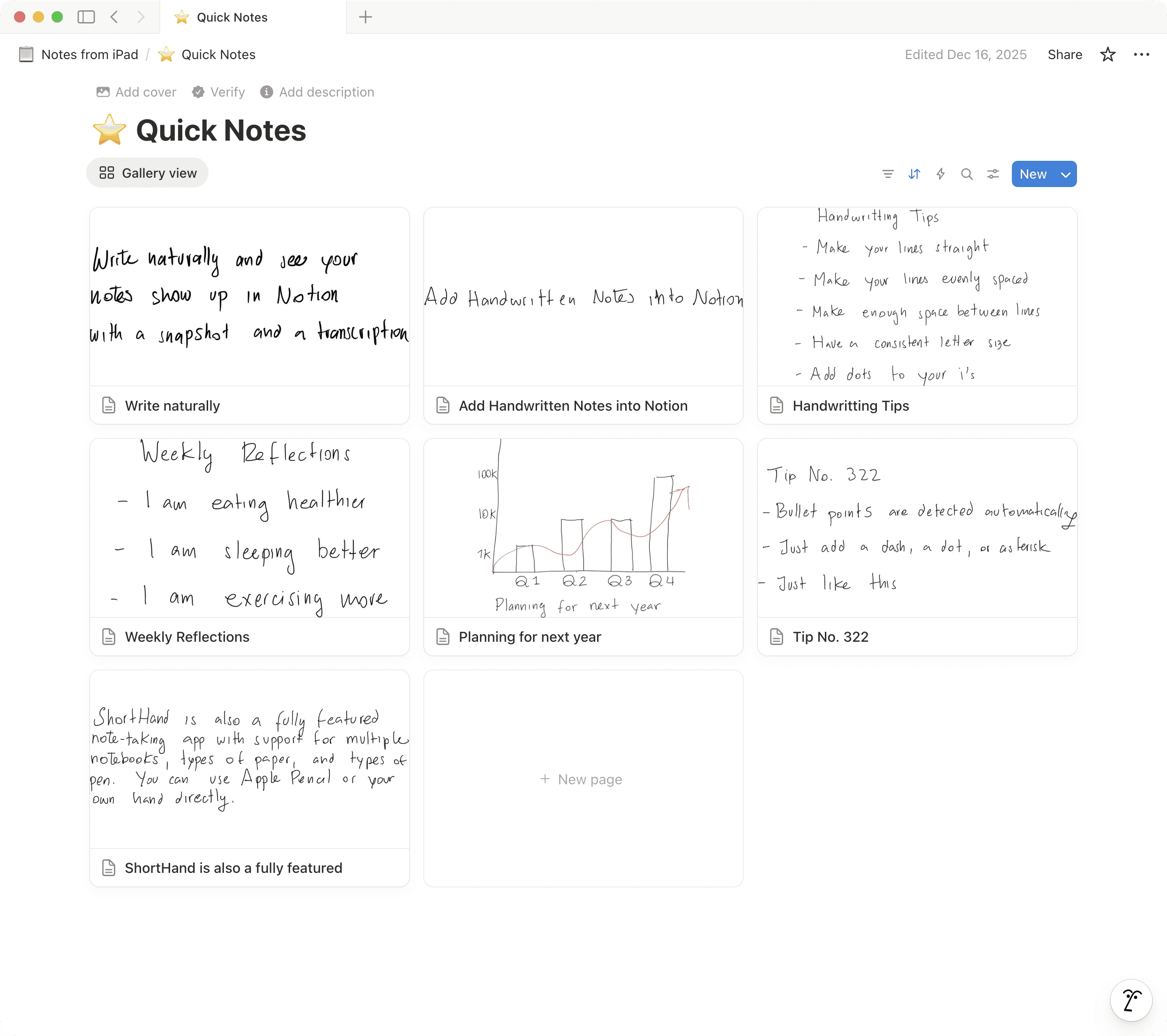
ShortHand is an iPad app that syncs your handwritten notes directly into a Notion database.
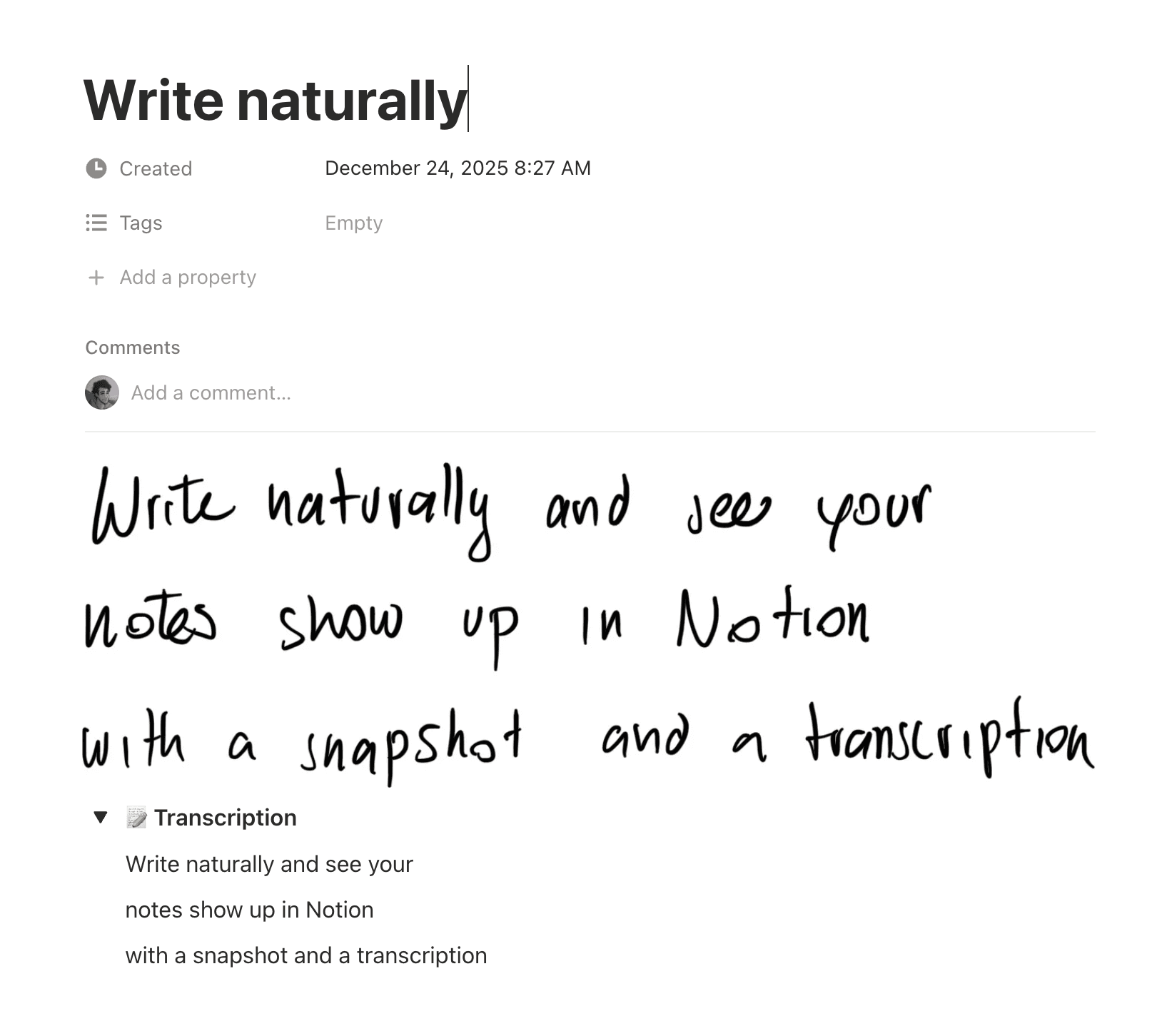
It creates a new Notion page for each note and includes:
- The handwritten image
- A transcription you can search
- Updated versions whenever you edit the note again
ShortHand is a paid app, but you can sync up to 10 notes for free.
Step 1: Download ShortHand
First, download ShortHand from the App Store.
Once it’s installed, open it up and get ready to connect it to Notion.
Step 2: Connect ShortHand to your Notion account
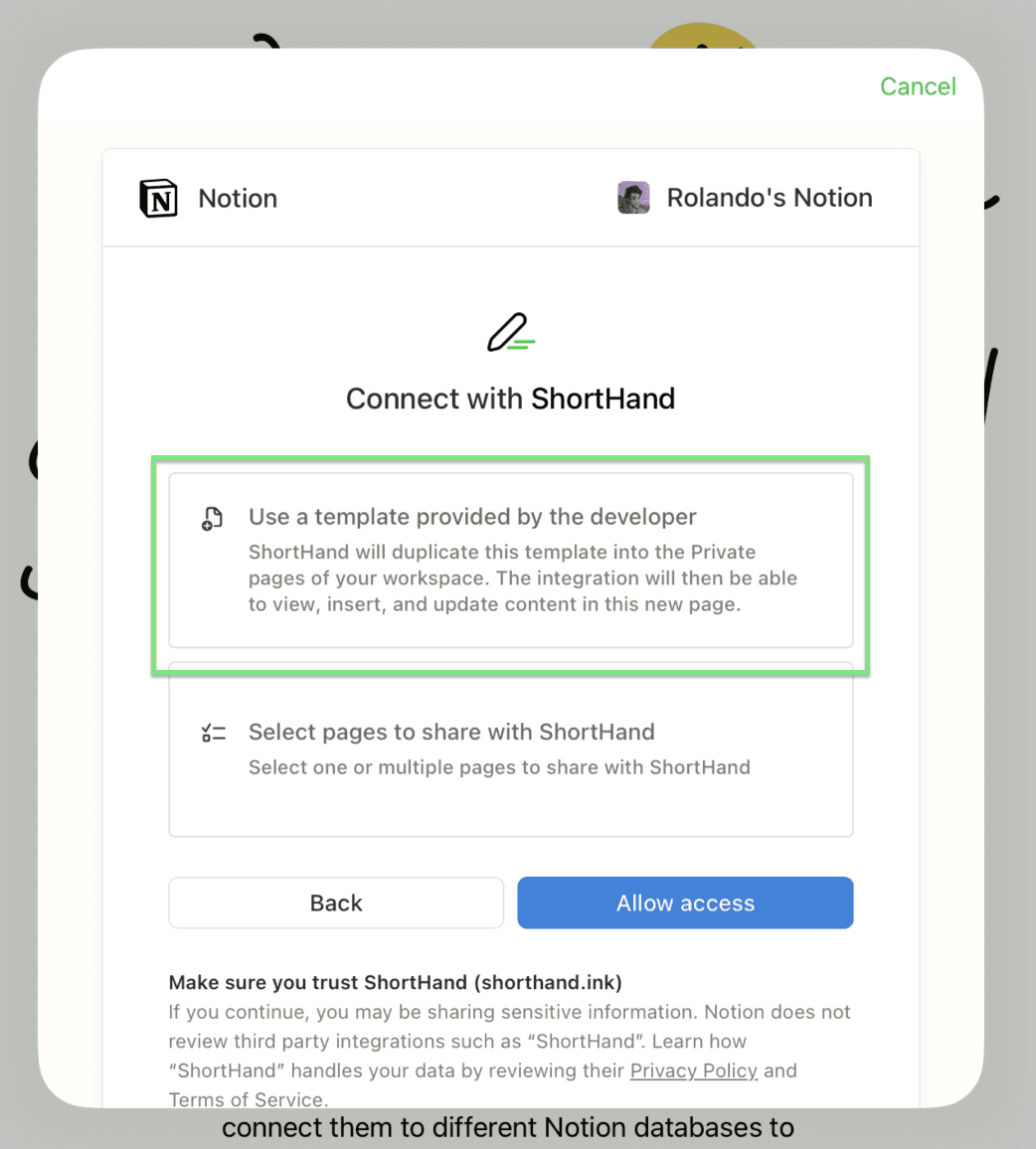
Inside ShortHand:
- Connect to your Notion account.
- Pick the Notion page that contains the databases you want to use.
If you don’t already have a setup in Notion, ShortHand includes free templates you can start with. That’s honestly the easiest option for a first-time test, and you can change it later once you know what you want.
Step 3: Link a notebook to a Notion database
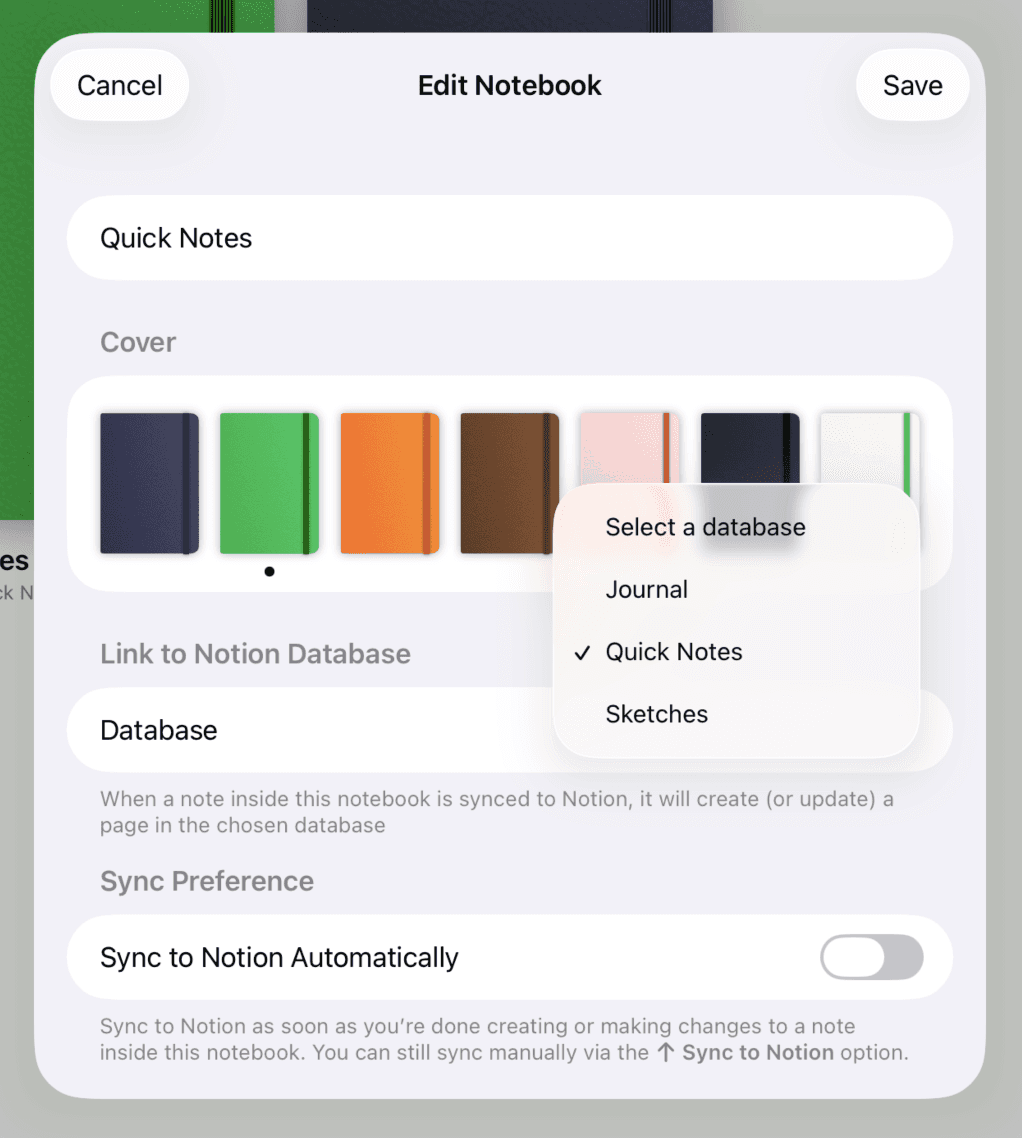
Once your Notion connection is set up, you’ll configure a notebook inside ShortHand to sync to a specific Notion database.
For example, if you’re using the default ShortHand template, you can link a notebook to the included Quick Notes database.
This step matters because it determines where ShortHand will create pages in Notion.
Step 4: Write a note, then sync it

Now the fun part…
Write a note in ShortHand like you normally would. When you’re done, tap “Sync to Notion” in the top right.
ShortHand will automatically:
- Create a new page in your selected Notion database
- Upload the handwritten note image
- Add a transcription alongside it
That transcription means you can search your handwriting later, and you can also use it with Notion AI if you want.
Step 5: Edit your note anytime (it stays updated in Notion)
If you go back later and change the handwritten note, you don’t have to re-export or re-copy anything.
Just sync again.
ShortHand will replace the existing image and transcription in Notion with the latest version, so your Notion page stays up to date automatically.
Conclusion
With ShortHand, you can turn Notion into a handwritten journal (or a quick notes system) that syncs automatically, stays updated, gives you searchable text from your handwriting, and integrates into your custom Notion setup.
Turn Your Notion into a Handwritten Journal with ShortHand